Free AI Image Extender — Expand Any Photo Beyond Its Edges
Upload a photo, pick a new aspect ratio, and the AI image extender paints in the missing background so nothing looks cropped. Perfect for banners, Stories, thumbnails and print.
What People Expand with the AI Image Extender
Real reframing jobs, done in one click. Click any example to load it straight into the AI image extender above and see the expansion for yourself.
Portrait to Landscape
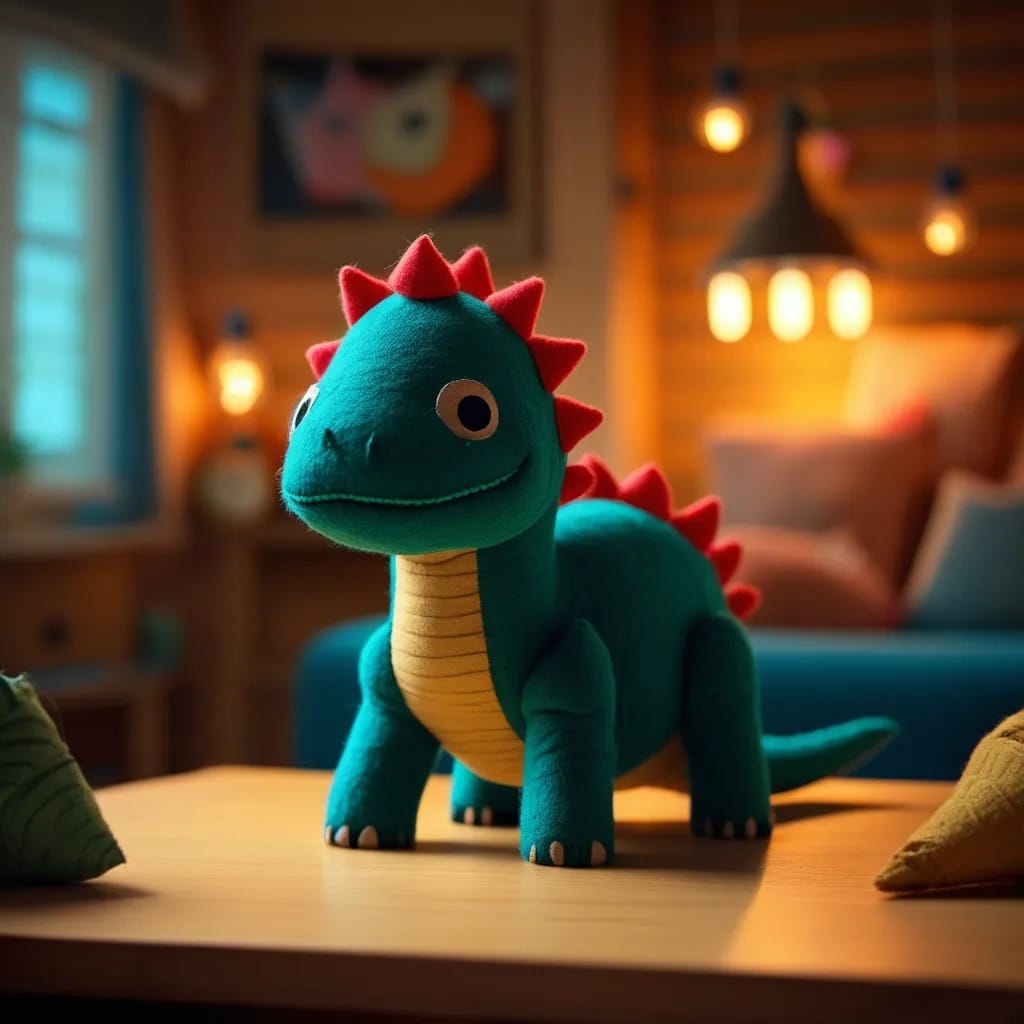
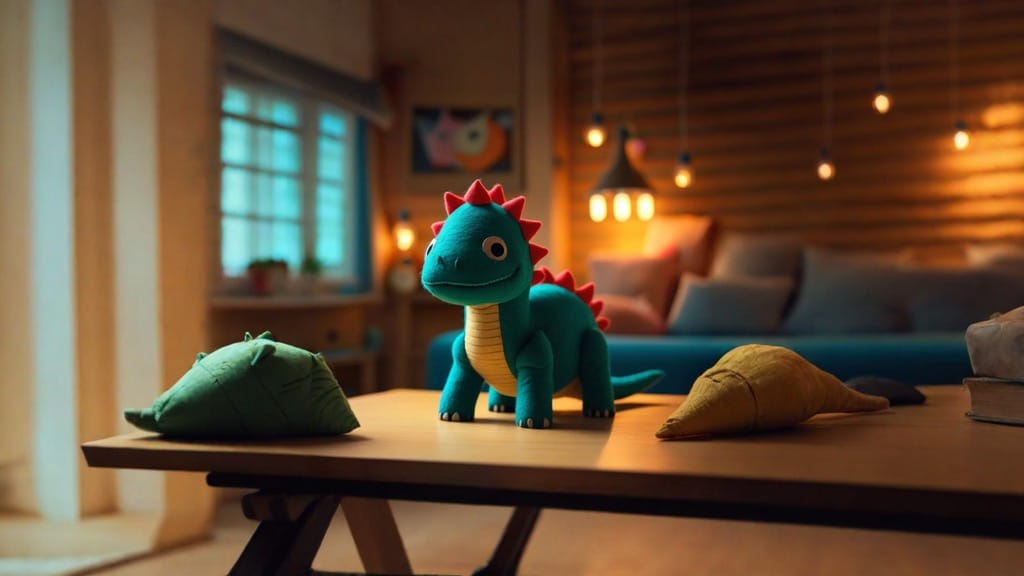
Square to Widescreen
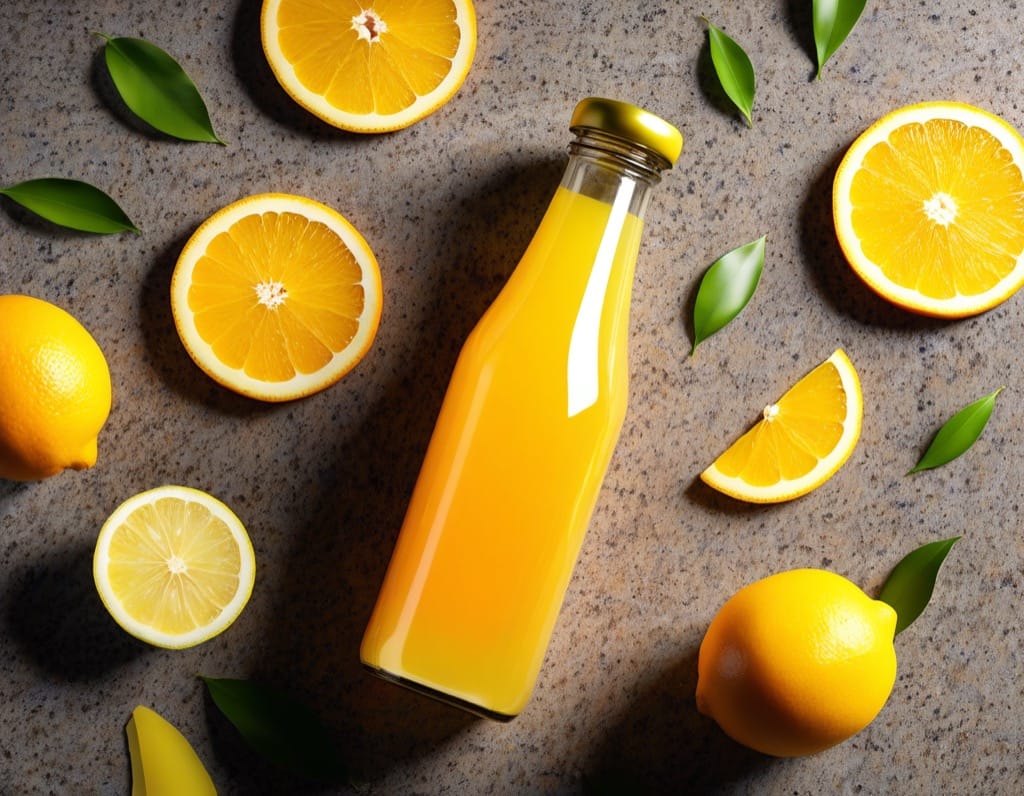
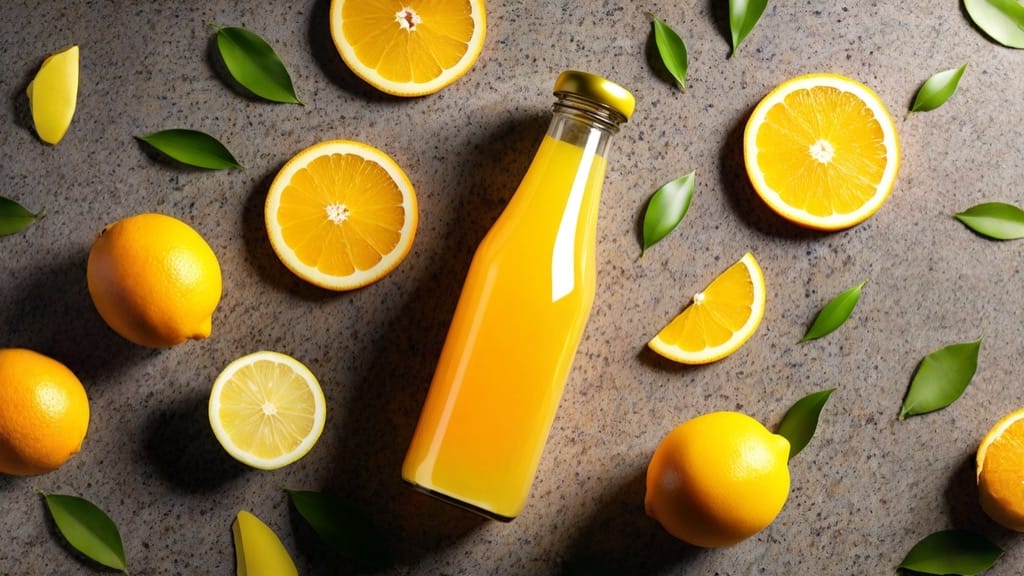
Vertical Photo to Cinematic 16:9
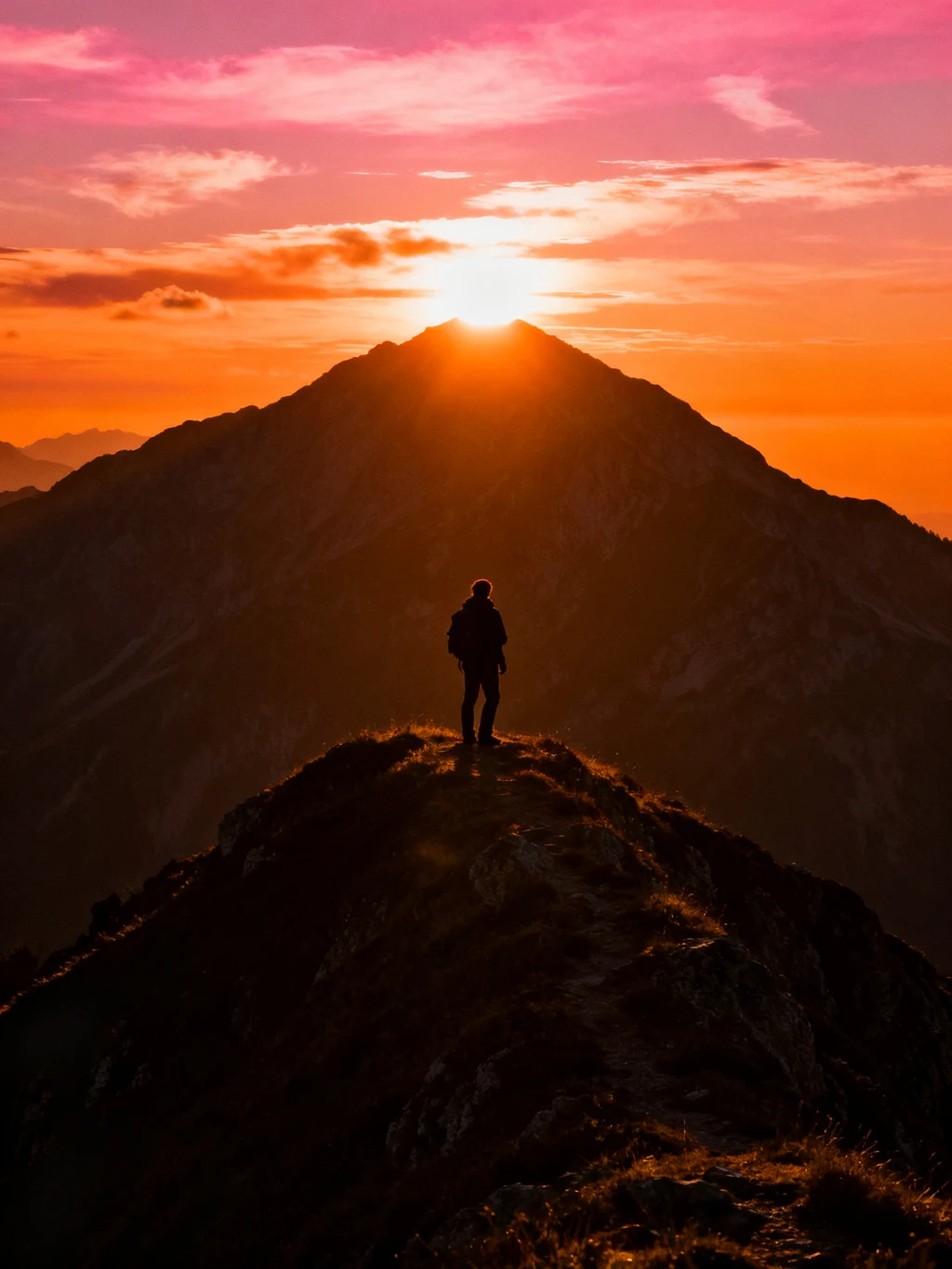
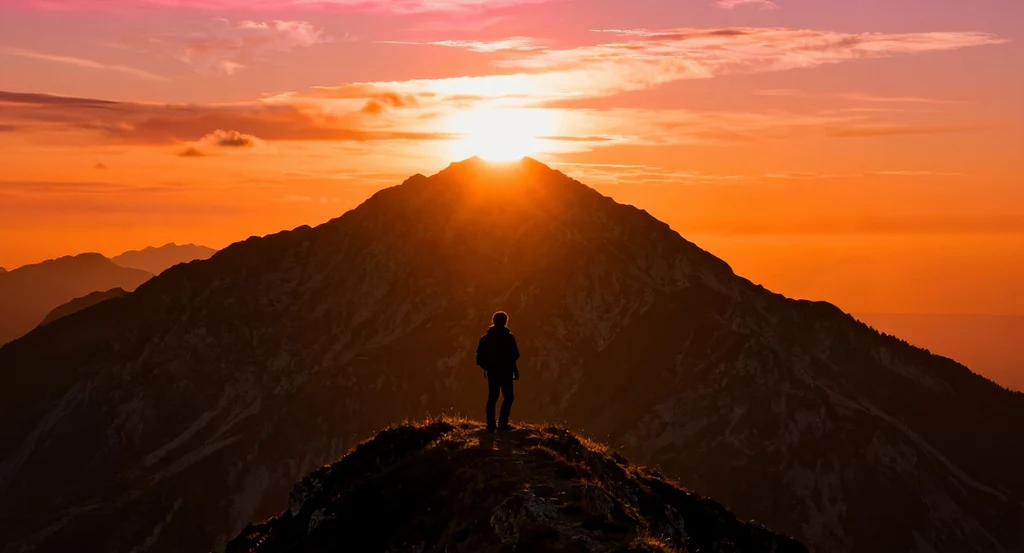
Wide Shot to 9:16 Story
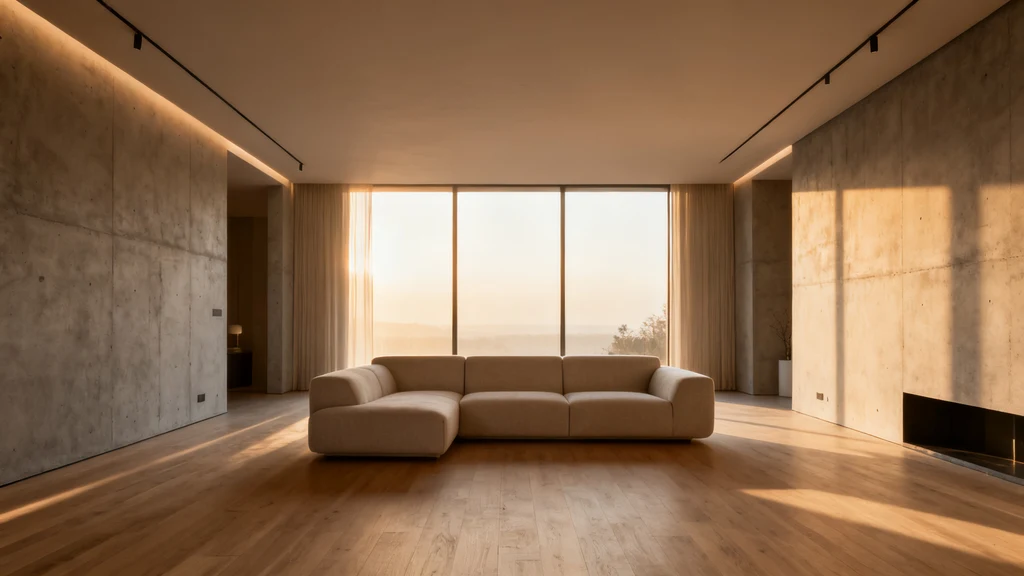
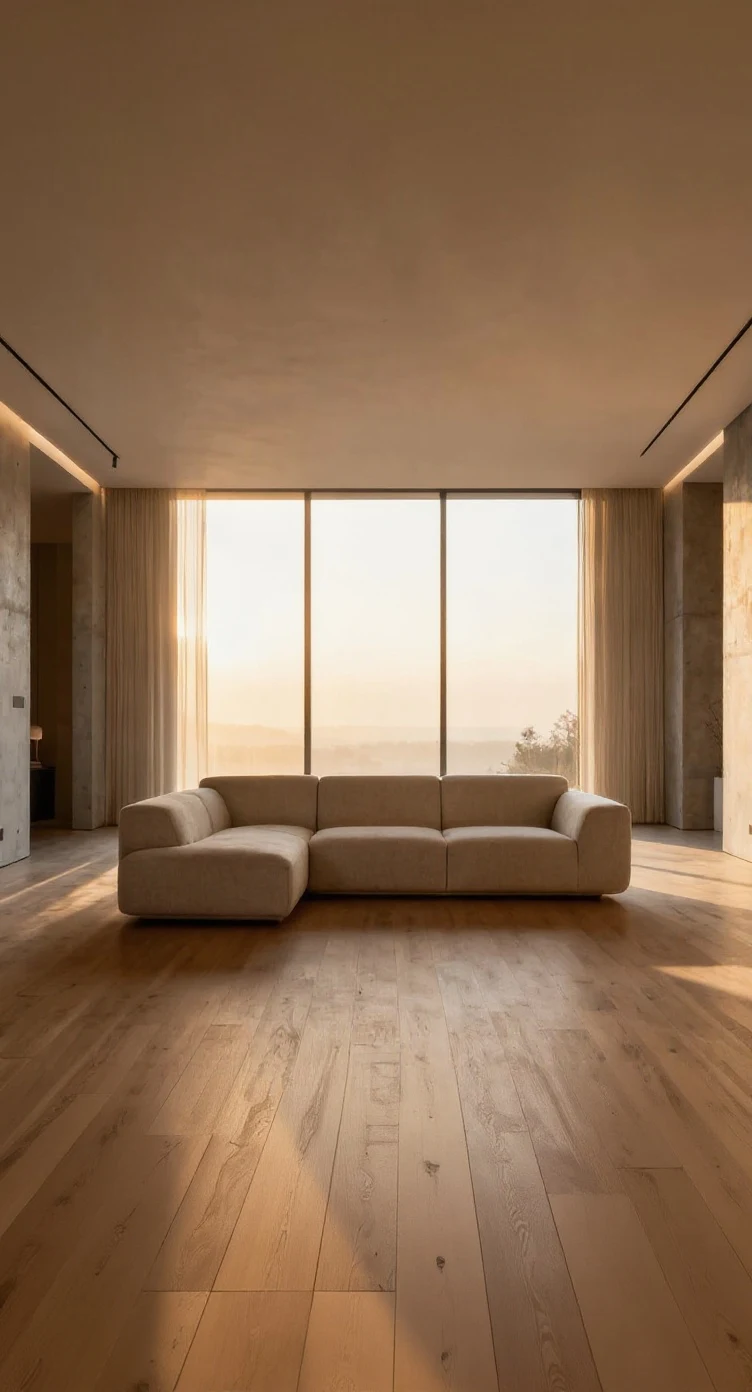
Why This AI Image Extender Beats Cropping
Cropping throws pixels away. Extending invents new ones that match — so your subject keeps its breathing room in every format.
Context-Aware Background Fill
The AI image extender reads lighting, texture and perspective from your original photo, then continues them outward. Skies keep their gradient, walls keep their angle, and the seam is invisible.
Every Aspect Ratio You Need
Expand to 1:1, 16:9, 9:16, 4:3 or 3:4 from a single upload. One product shot becomes a website banner, an Instagram square and a full-screen Story without ever cutting off your subject.
Nothing Gets Cropped Out
Traditional resizing forces you to sacrifice heads, logos or edges to fit a frame. Image extension adds space instead of removing it, so the whole composition survives the format change.
Results in 10-25 Seconds
Upload, pick a ratio, done. No masks to paint, no clone-stamping, no manual retouching — the AI image extender handles the whole outpainting job for 16 credits per image.
AI Image Extender vs. Cropping & Manual Outpainting
Why expanding the canvas beats every workaround for changing aspect ratio.
How to Use AI Image Extender
1. Upload Your Image
Upload any image you want to extend or expand. Our AI Image Extender supports various formats and processes images with intelligent background extension.
2. Select Target Aspect Ratio
Choose your desired aspect ratio from the dropdown menu. The AI Image Extender offers square, landscape, portrait, and ultra-wide format options.
3. Generate Extended Image
Click 'Extend Image' to start AI processing. Our AI Image Extender intelligently expands your image while maintaining visual coherence and style.
AI Image Extender FAQs
What is the difference between extending an image and just resizing it?
Resizing stretches or crops the pixels you already have — you either distort the picture or lose part of it. The AI image extender generates brand-new background that never existed in the original, so a portrait photo can become a 16:9 banner with the subject fully intact. This technique is also called outpainting or uncropping.
Will the extended part actually match my photo?
Yes — that's the hard part the model is built for. It samples the lighting, colour, grain, texture and perspective at the edges of your image and continues them outward, so a sunset sky keeps its gradient and a wooden floor keeps its grain direction. Simple, continuous backgrounds (sky, walls, water, studio backdrops) extend almost perfectly. Very busy edges with complex objects are where you may want to try a second run.
Can I turn a vertical phone photo into a wide banner?
That's the most common use. Upload the vertical shot, choose 16:9, and the AI image extender fills in the left and right sides with matching scenery. It works in the other direction too — a wide landscape shot can be expanded to 9:16 for Reels, TikTok or Stories without cropping your subject out of the frame.
What aspect ratios can I extend to?
1:1 square, 16:9 widescreen, 9:16 vertical, 4:3 classic and 3:4 portrait. You can run the same source image through several ratios to build a full set of assets — banner, square post and Story — from one photo.
Does extending reduce my image quality?
The original pixels are preserved and the new area is generated at matching quality, so there is no stretching or blurring. If you need the finished image at a larger size for print or a hero banner, run the result through our AI Image Upscaler to raise the resolution afterwards.
Can I extend only one side of an image?
The extender works by targeting an aspect ratio, so it expands whichever sides are needed to reach that shape. If you need pixel-precise control over exactly which region changes — for example filling one corner or removing an object — use our AI Image Inpainting tool instead.
How long does it take and what does it cost?
Most images finish in 10-25 seconds depending on complexity, and each extension costs 16 credits regardless of the aspect ratio you pick. You can start free with no sign-up required.
Are my uploaded and extended images stored?
No — extended images are not stored permanently, so download your result as soon as it appears. Please only upload images you have the right to edit; NSFW content is not permitted.
Explore More AI Image Tools
Finish the job with the rest of the Flux AI image toolkit.

Expand Your First Photo Free
Upload an image, pick a new aspect ratio, and watch the AI image extender fill in the rest. No Photoshop, no sign-up.
Open the AI Image Extender