Flux NSFW Guide: How to Generate Unrestricted AI Images (2026)

AI Image Expert
2/18/2026
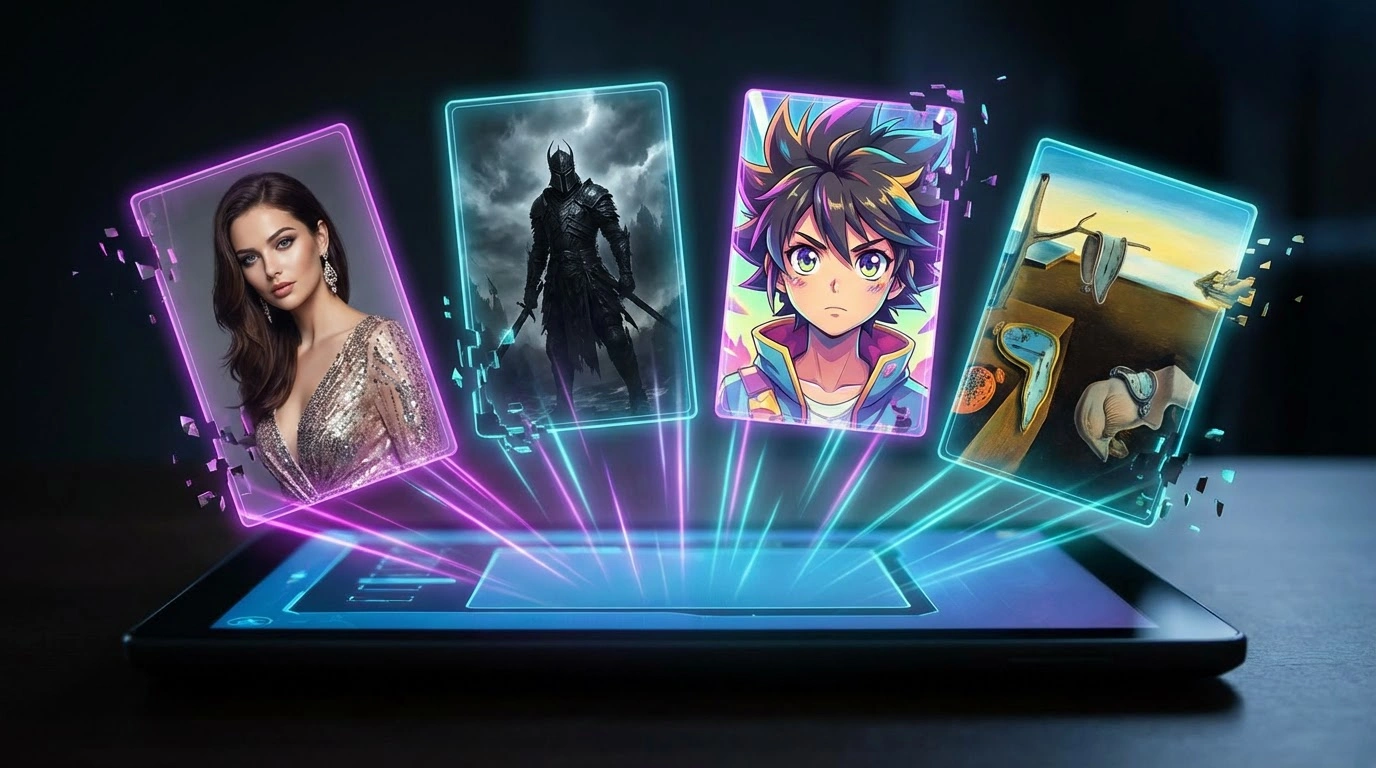
Flux NSFW Guide: How to Generate Unrestricted AI Images
Flux AI gives you a simple Safety Filter toggle — On or Off — putting you in full creative control. No complicated sliders, no guessing what's allowed.
This guide shows you exactly how to use it, with real prompts and actual results.
How the Safety Filter Works
| Setting | What It Does |
|---|---|
| Safety Filter: On | Standard filtering — blocks explicit content |
| Safety Filter: Off | Unrestricted generation — full creative freedom (Premium) |
How to Turn It Off
- Go to Flux AI Image Generator
- Open Advanced Settings (gear icon)
- Toggle Safety Filter to Off
When Safety Filter is Off, images are automatically set to Private.
Prompt Templates with Results
Every template below has been tested. Copy them, swap in your own [description], and generate.
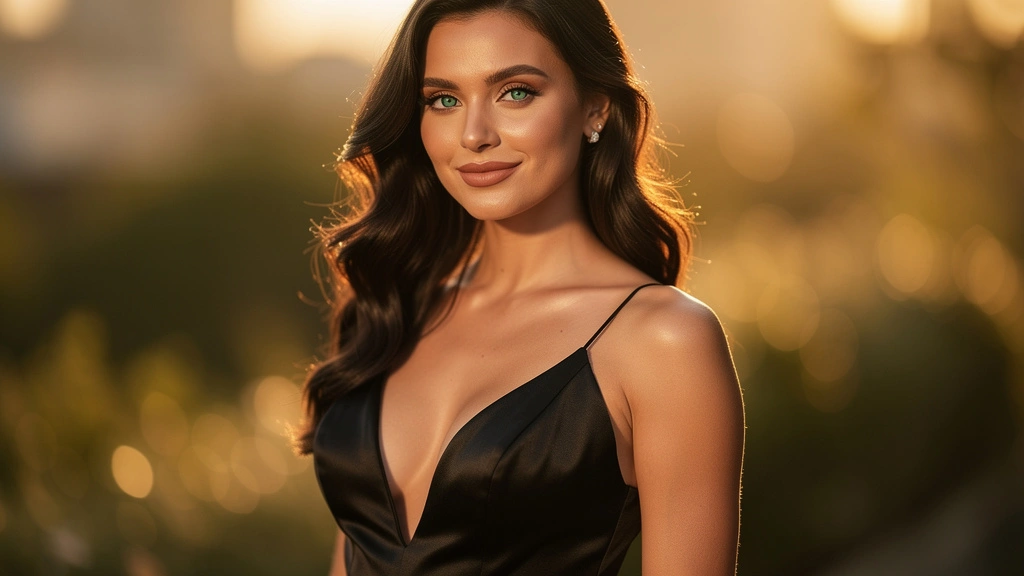
1. Realistic Portrait
A photorealistic portrait of [description], natural lighting,
shot on Canon EOS R5, 85mm f/1.4, shallow depth of field,
skin details visible, professional photography
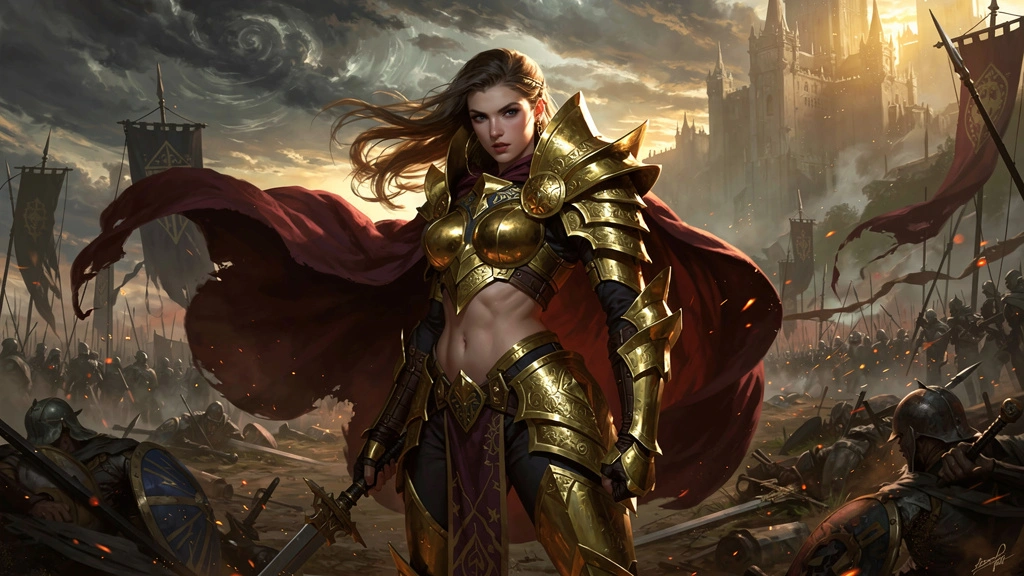
2. Fantasy Character
A detailed fantasy character, [description], dramatic lighting,
digital painting style, intricate costume details,
by Greg Rutkowski and Alphonse Mucha
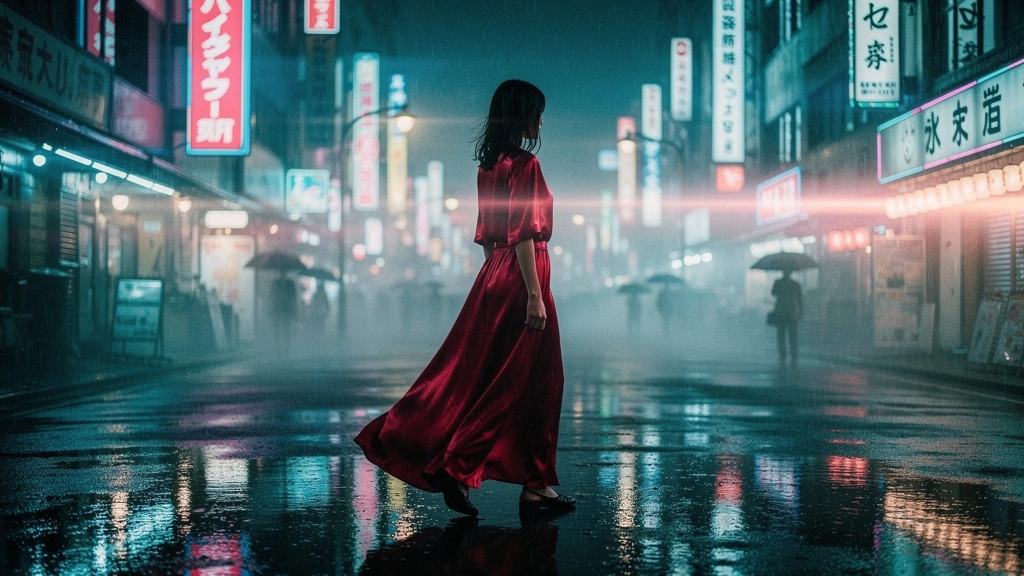
3. Cinematic Scene
A cinematic still from a movie, [description],
anamorphic lens, volumetric lighting, film grain,
color graded, 35mm film aesthetic
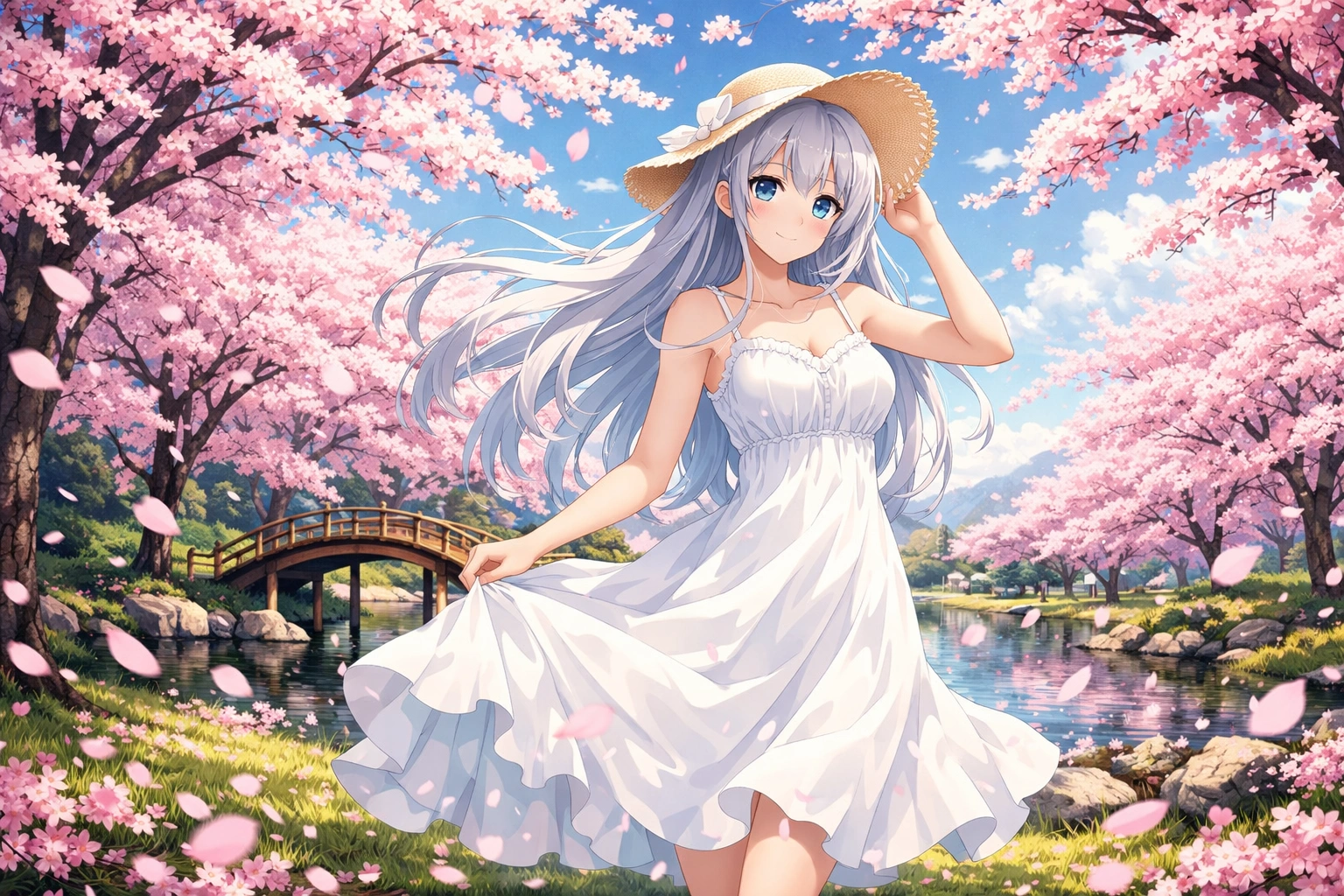
4. Anime Style
[description], anime style, high quality illustration,
detailed linework, vibrant colors, studio lighting,
trending on ArtStation
5. Oil Painting
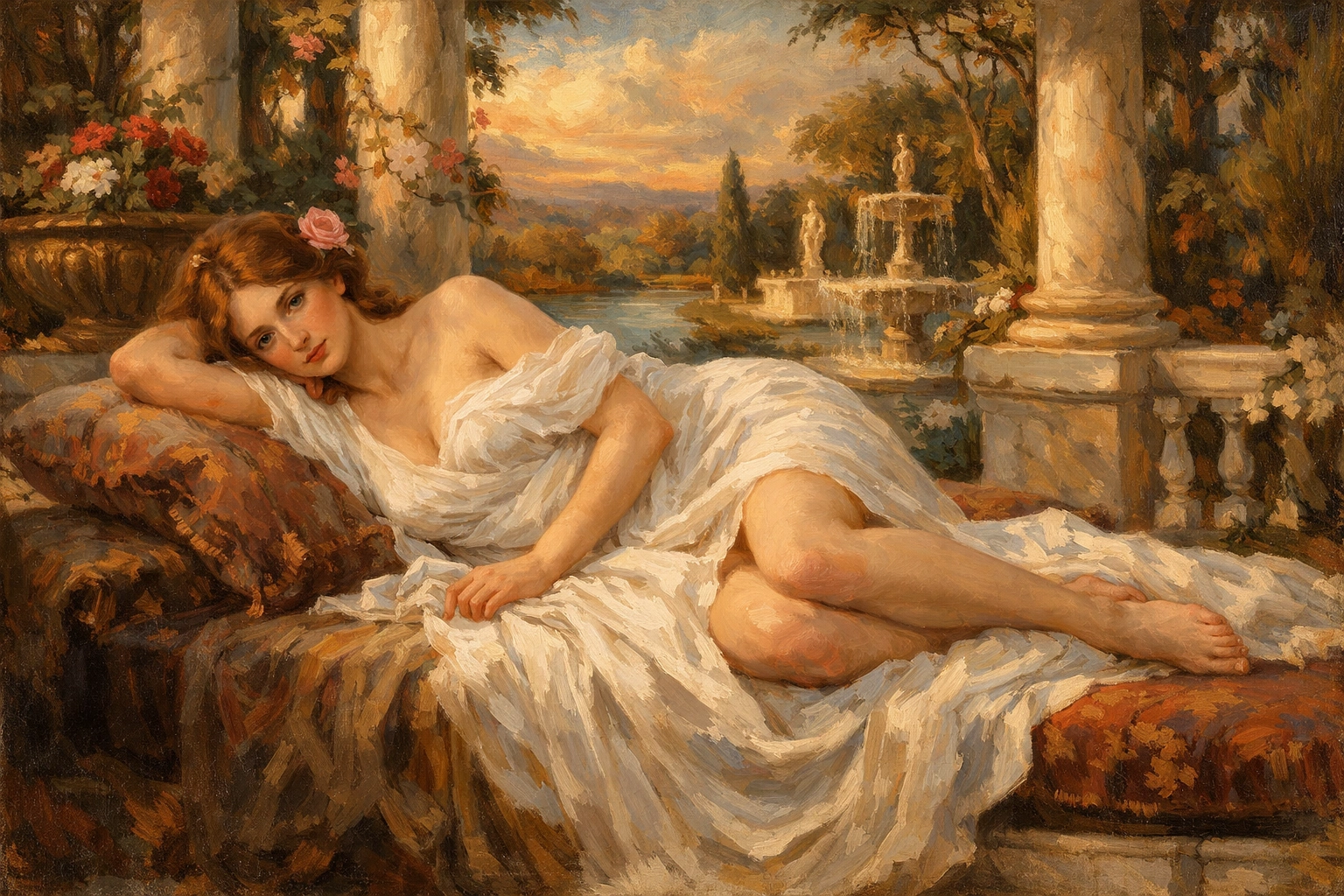
An oil painting of [description], visible brushstrokes,
rich color palette, gallery lighting, museum quality,
inspired by classical masters
Pro Tip: Be specific. Instead of "a woman standing", try "a confident woman in her 30s, standing in a sunlit doorway, wearing a linen dress, Mediterranean architecture in background."
Choosing the Right Flux Model
Not all Flux models are equal — especially for unrestricted content. Here's what to pick:
| Model | Quality | Speed | Best For |
|---|---|---|---|
| Flux 2 Dev | Great | Fast | Everyday generation, testing prompts |
| Flux 2 Max | Best | Slower | Final renders, detailed work with Safety Filter Off |
| Flux 2 Flex | Great | Fast | Flexible styles, quick iterations |
For NSFW/unrestricted content, use Flux 2 Max. It handles fine details and complex compositions significantly better than Dev — especially noticeable with Safety Filter Off where you need maximum quality in every pixel.
Flux 2 Dev is perfect for drafting and prompt testing before committing to a Max generation.
Quality Settings Guide
Inference Steps
| Steps | Speed | Quality | Best For |
|---|---|---|---|
| 10-15 | ⚡ Fast | Good | Quick drafts |
| 25-30 | 🔄 Medium | Great | Most use cases |
| 40-50 | 🐢 Slow | Excellent | Final renders |
Sweet spot: 28-30 steps. Going above 35 rarely adds noticeable improvement.
Seed Control
Lock the seed to reproduce results you love. Use the same seed + slightly modified prompt to create variations — perfect for consistent character sets.
Negative Prompts
Clean up common issues:
blurry, low quality, distorted, deformed, extra fingers,
bad anatomy, watermark, text, logo, oversaturated
Platform Comparison
| Feature | Flux AI | Midjourney | DALL-E 3 | Stable Diffusion |
|---|---|---|---|---|
| Content Freedom | High (On/Off) | Low | Very Low | Full (self-hosted) |
| Ease of Use | ⭐⭐⭐⭐⭐ | ⭐⭐⭐⭐ | ⭐⭐⭐⭐⭐ | ⭐⭐ |
| Image Quality | Excellent | Excellent | Great | Varies |
| Price | Free + Premium | $10+/mo | ChatGPT+ | Free (needs GPU) |
| No Login Required | ✅ | ❌ | ❌ | ✅ |
Bottom line: Flux = quality + freedom + ease of use. Stable Diffusion has more freedom but needs technical setup.
Troubleshooting
Black Images / "NSFW Detected"
- Rephrase using artistic or technical language
- Change the seed — different seeds can produce different filter results
- Increase steps to 35+ for more refined output
Poor Quality
- Increase steps to 25+
- Add quality modifiers: "high resolution", "detailed", "professional"
- Use 16:9 or 3:4 ratio instead of square
Inconsistent Results
- Lock the seed for consistency
- Keep prompt structure stable — small wording changes cause big differences
Advanced Techniques
Image-to-Image
Upload a reference and modify it with the AI Photo Editor — change outfits, swap backgrounds, or transfer styles.
Consistent Characters
- Generate your base character with a detailed prompt
- Lock the seed
- Use Flux Kontext for character-consistent variations
- Or use AI Face Swap for face consistency across scenes
FAQ
Is Flux AI free?
Yes — free tier with daily limits. Premium unlocks Safety Filter toggle, unlimited generations, and higher steps.
Is generating NSFW AI art legal?
In most jurisdictions, AI art for personal use is legal. Content depicting minors or non-consenting real individuals is illegal everywhere. Use AI responsibly.
Can I use these images commercially?
Premium users get commercial rights. See terms of service for details.
Why are my images still blocked with Safety Filter Off?
There's a platform-level safety layer. Rephrase using artistic language — see Troubleshooting above.
Flux Dev vs Flux Pro?
Flux Dev is the open-source model. Flux Pro (on fluxai.pro) adds optimized inference, better quality, and the Safety Filter toggle.
Related Tools
- AI Photo Editor — Edit and enhance any image
- Realistic AI Generator — Photorealistic output
- AI Face Swap — Swap faces in any image
- AI Kissing Generator — Fun face merging
- Image to Video — Animate your images
Last updated: February 2026